2D, 3D and physics in one browser window
Draw layouts and diagrams, assemble 3D parts and mechanisms, switch physics on and watch it run. Nothing to install, and you can work on a project together.
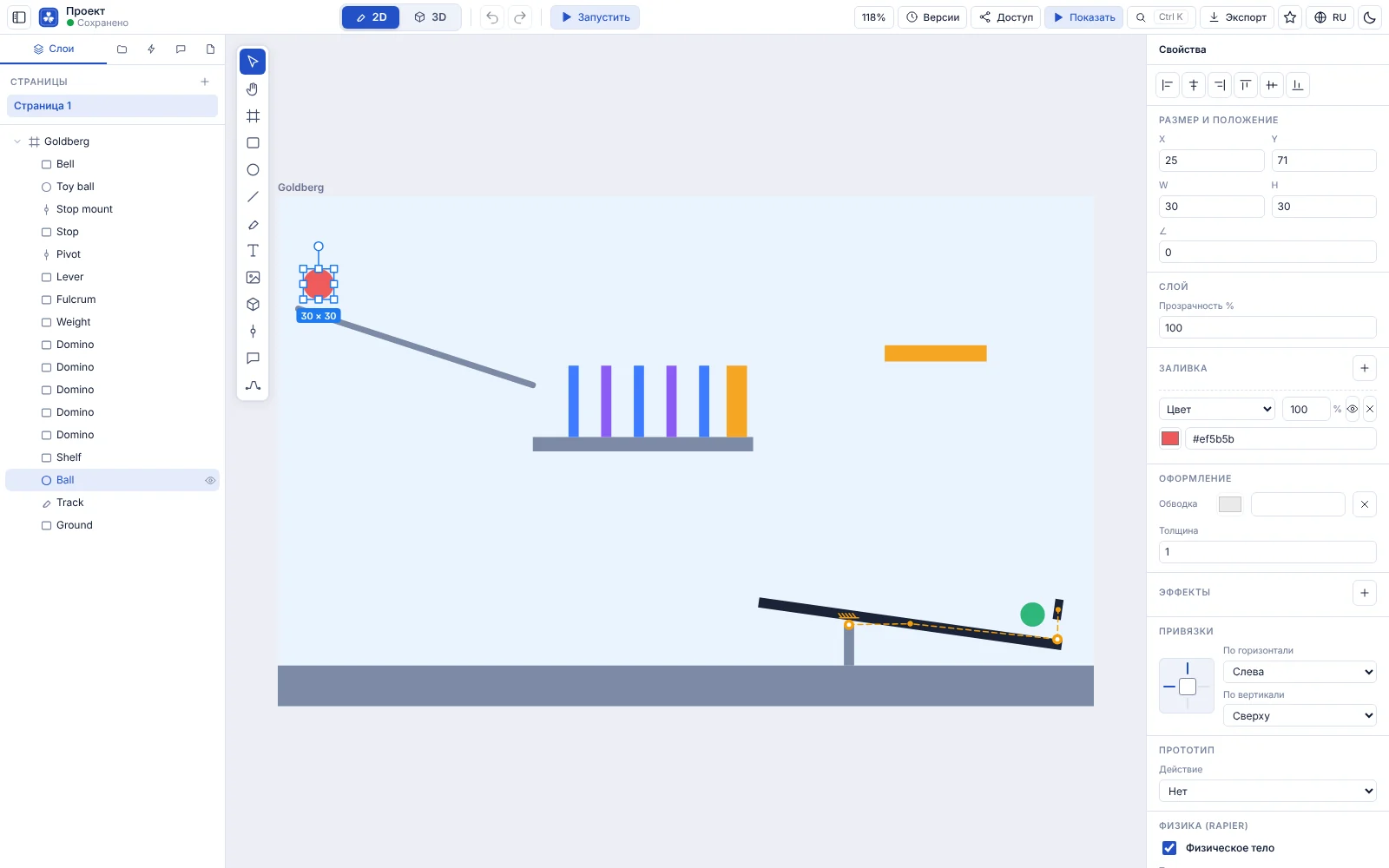
2D: design and physics
A vector editor in the spirit of familiar design tools where any object can become a physical body.
Canvas and properties, like a design editor
Frames, shapes, lines, Bézier curves and text. Whatever is selected is adjusted in the panel on the right.
- Size, position, rotation, alignment and opacity
- Solid and gradient fills, strokes, effects
- Constraints to frame edges and responsive layouts
- Layers and pages, components and library, comments on the canvas
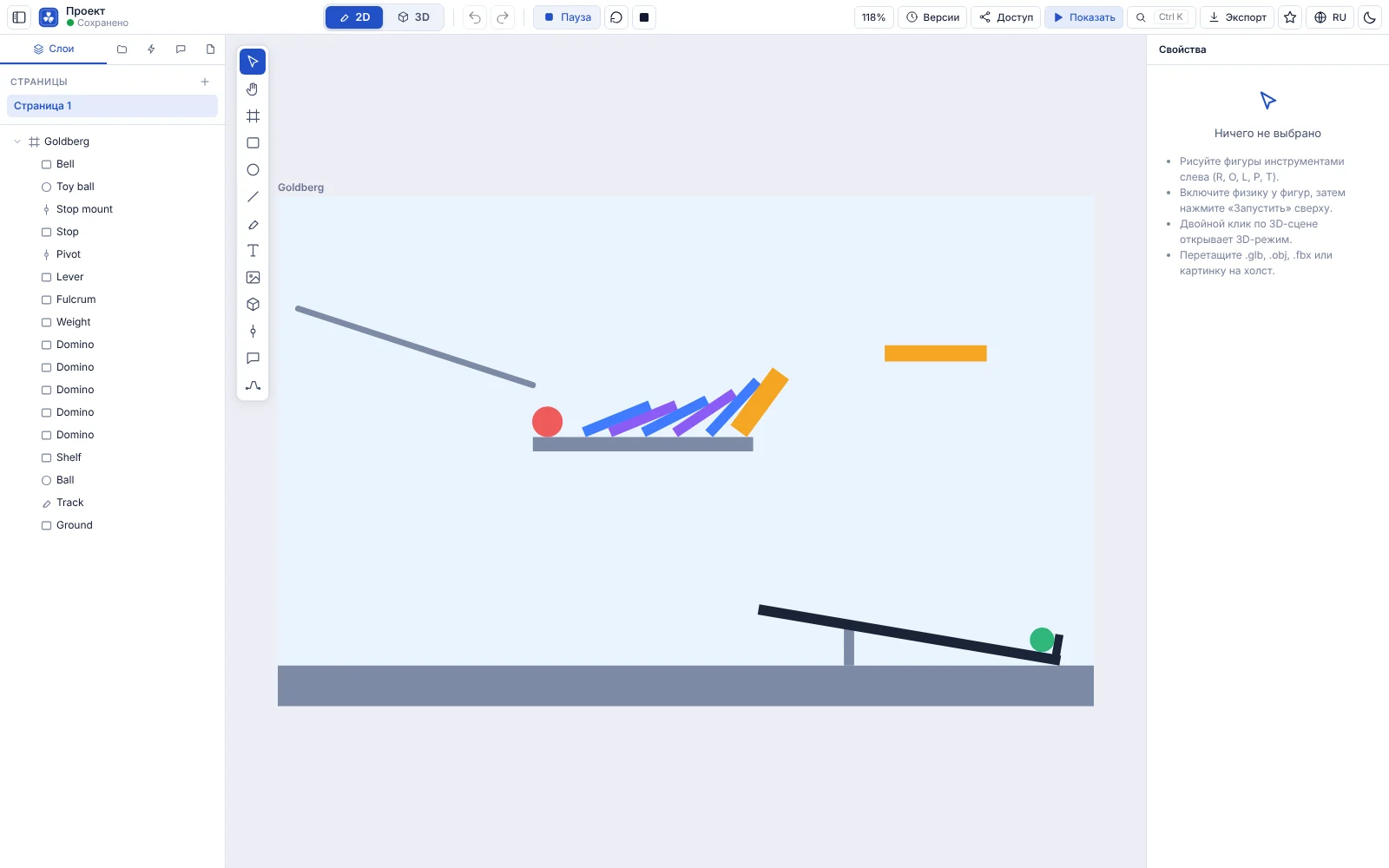
Press Run and everything falls as expected
The Rapier physics engine runs right on the canvas. Turn on Physical body for a shape, connect parts with hinges, set mass, friction and bounce.
- Hinges, springs, motors and linked mechanisms
- Gravity, friction, bounce and initial velocity
- Pause, reset and Present for a demo without the editor
- One click returns the scene to its initial state
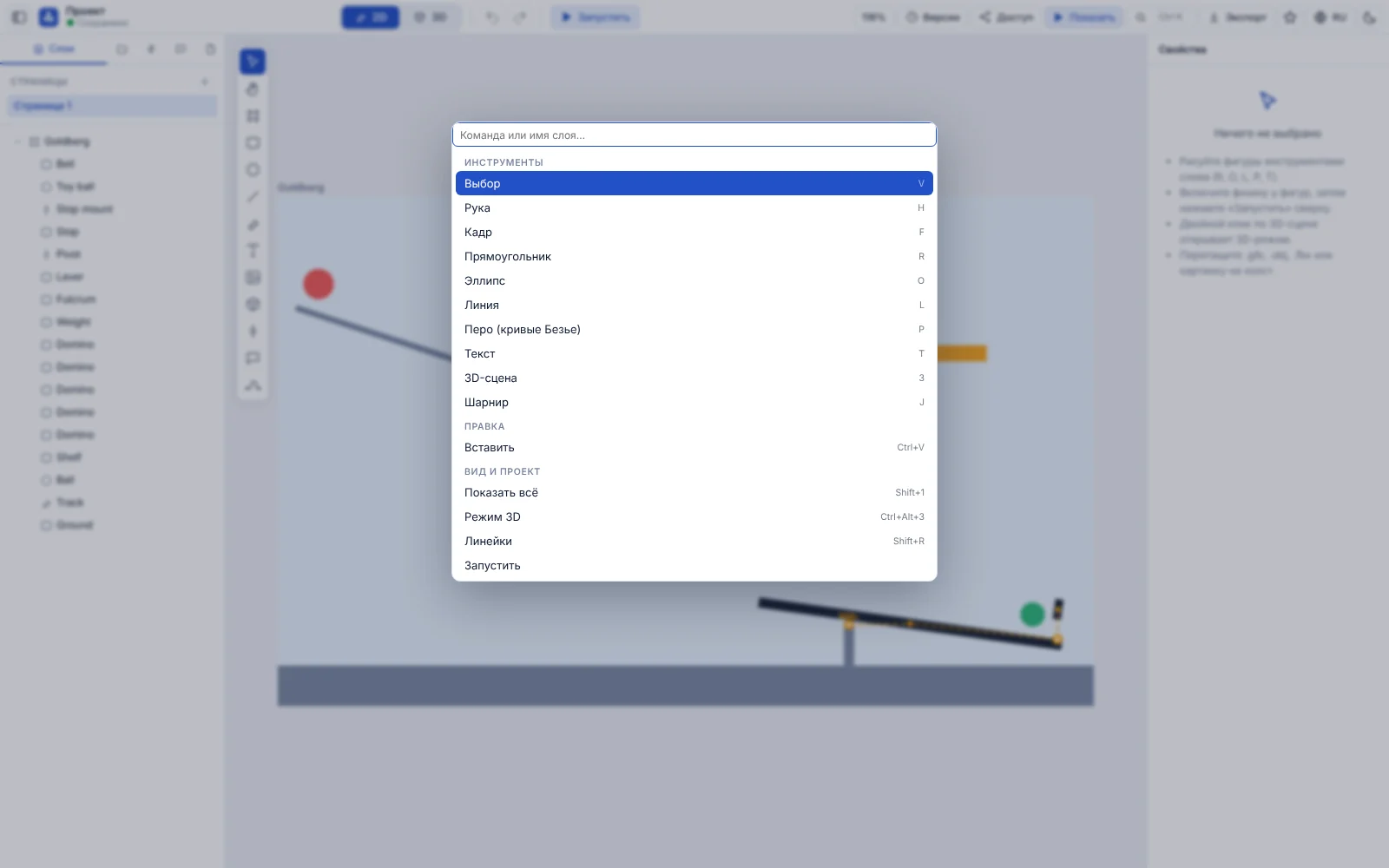
Everything at hand: the command palette
Press Ctrl+K and find a tool, command or layer by name. Each command shows its shortcut.
- Search across tools, edit commands, view and layers
- Quick switch to 3D mode
- You learn the shortcuts as you go
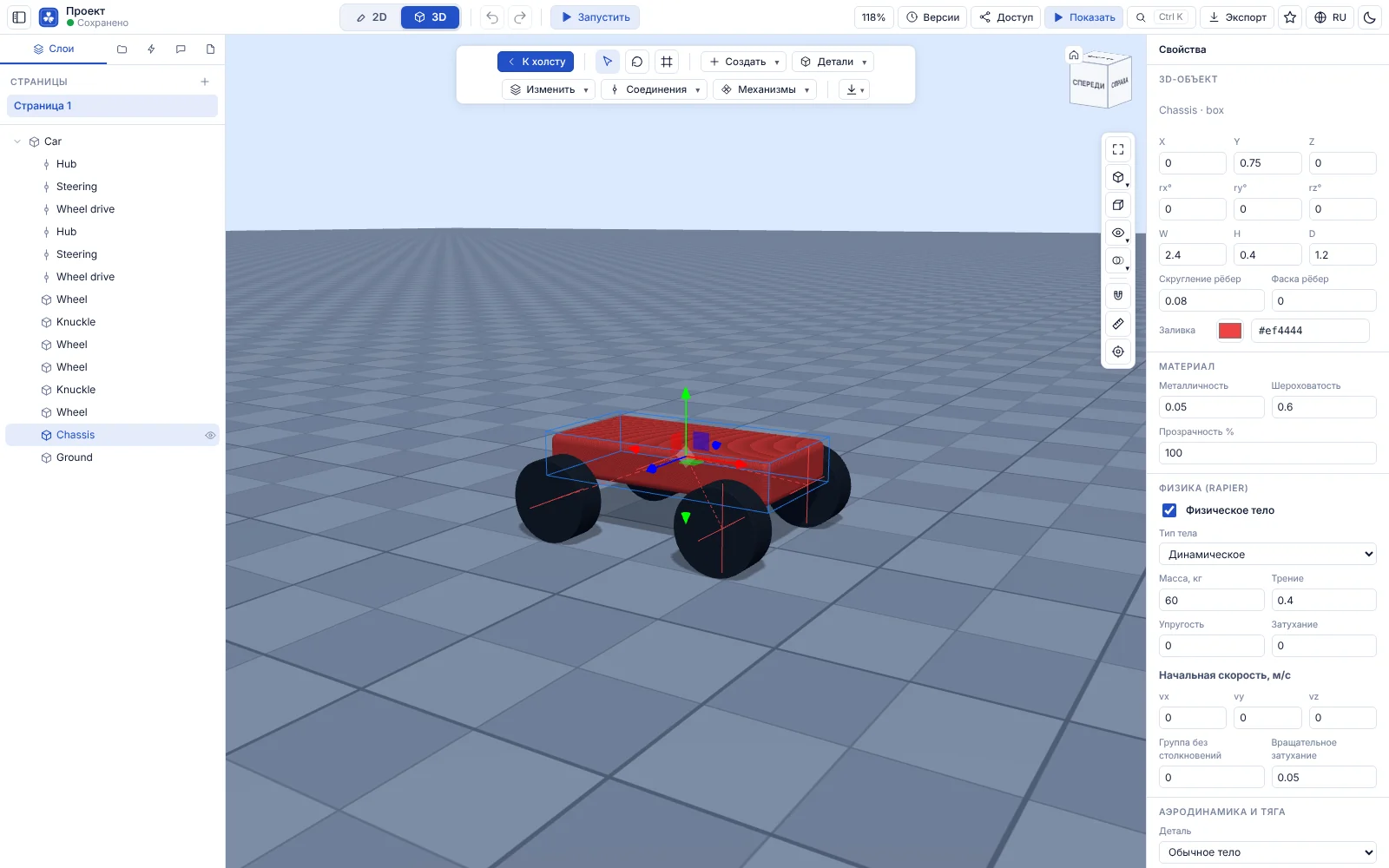
3D: scenes, parts and mechanisms
Switch to 3D with one button: the same project gets a 3D scene with a gizmo, a view cube and real physics.
A 3D scene with gizmo and physics
Move, rotate and scale bodies, set the material and physical properties. A selected part exposes its size, edge rounding and chamfer.
- Move, rotate, scale: gizmo or the W, E, R keys
- Material: color, metalness, roughness, opacity
- Mass, friction, bounce, damping, initial velocity
- Aerodynamics and thrust for wings, propellers and nozzles
Precise part modeling
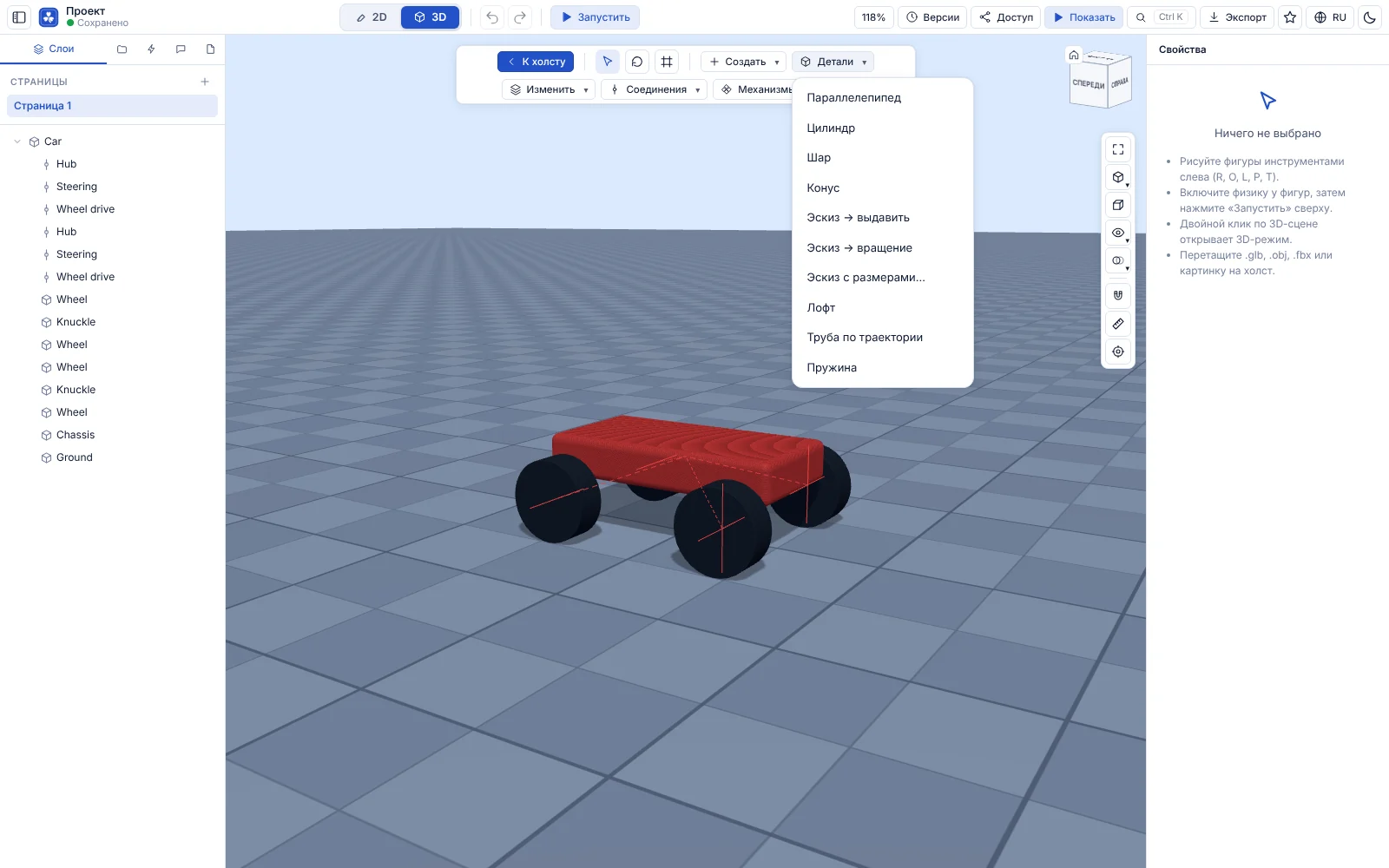
The Parts menu has box, cylinder, sphere and cone, plus sketch → extrude, sketch → revolve, dimensioned sketch, loft, sweep along a path and spring.
- Dimensioned and constrained sketches
- Edge fillet and chamfer, shell, mirror, patterns
- Boolean operations: union, subtract, intersect
- Export to STEP, GLB and drawings
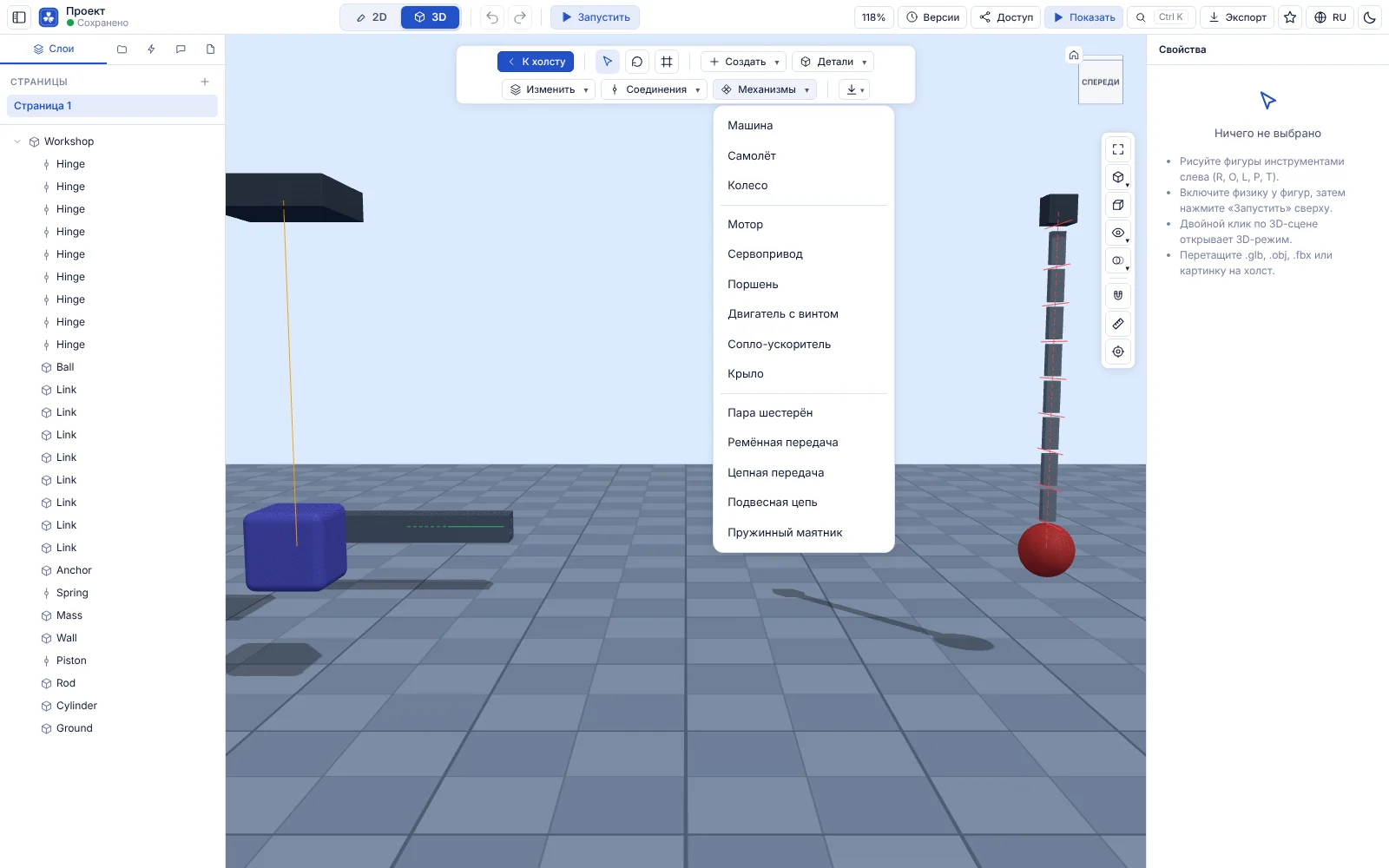
Mechanisms and machines as ready blocks
Car, airplane, wheel, motor, servo, piston, engine with propeller, thruster and wing. Gear pairs, belt and chain drives, hanging chain and spring pendulum.
- Revolute, prismatic, spherical and fixed joints
- Motors and springs with adjustable parameters
- Keyboard control of the machine during simulation
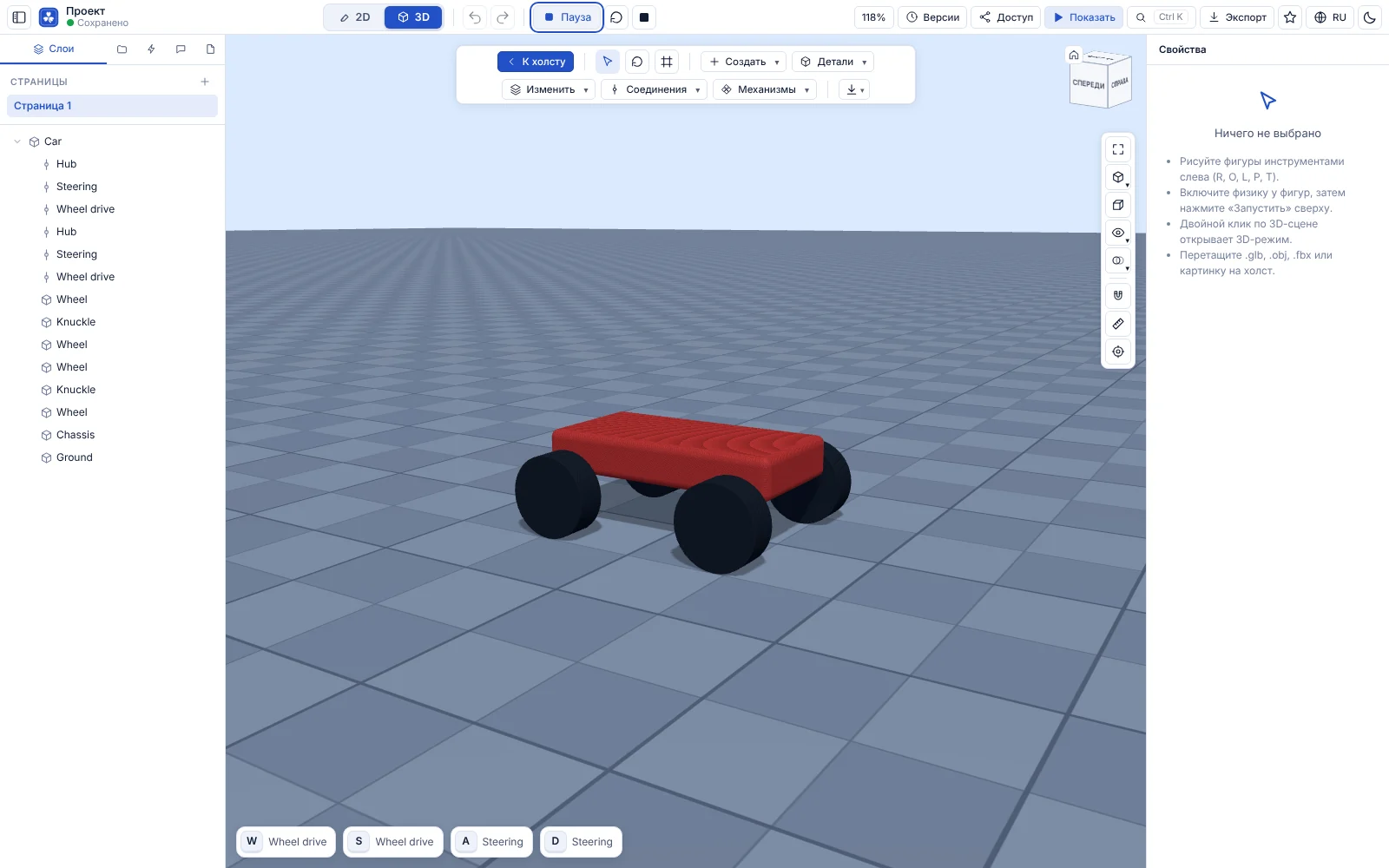
Drive: on-screen control keys
During simulation the keys used by the mechanism appear at the bottom. Press them on the keyboard, with the mouse or with a finger.
- Hints show what each key does
- You see which keys are pressed right now
- Works on a phone: tap the keys
Tasks, AI and animated ads
The editor does more than draw and run physics. A drawing can become an interactive task, AI can sketch a layout for you, and a finished scene can be saved as a GIF.
Tasks with sliders and answer checking
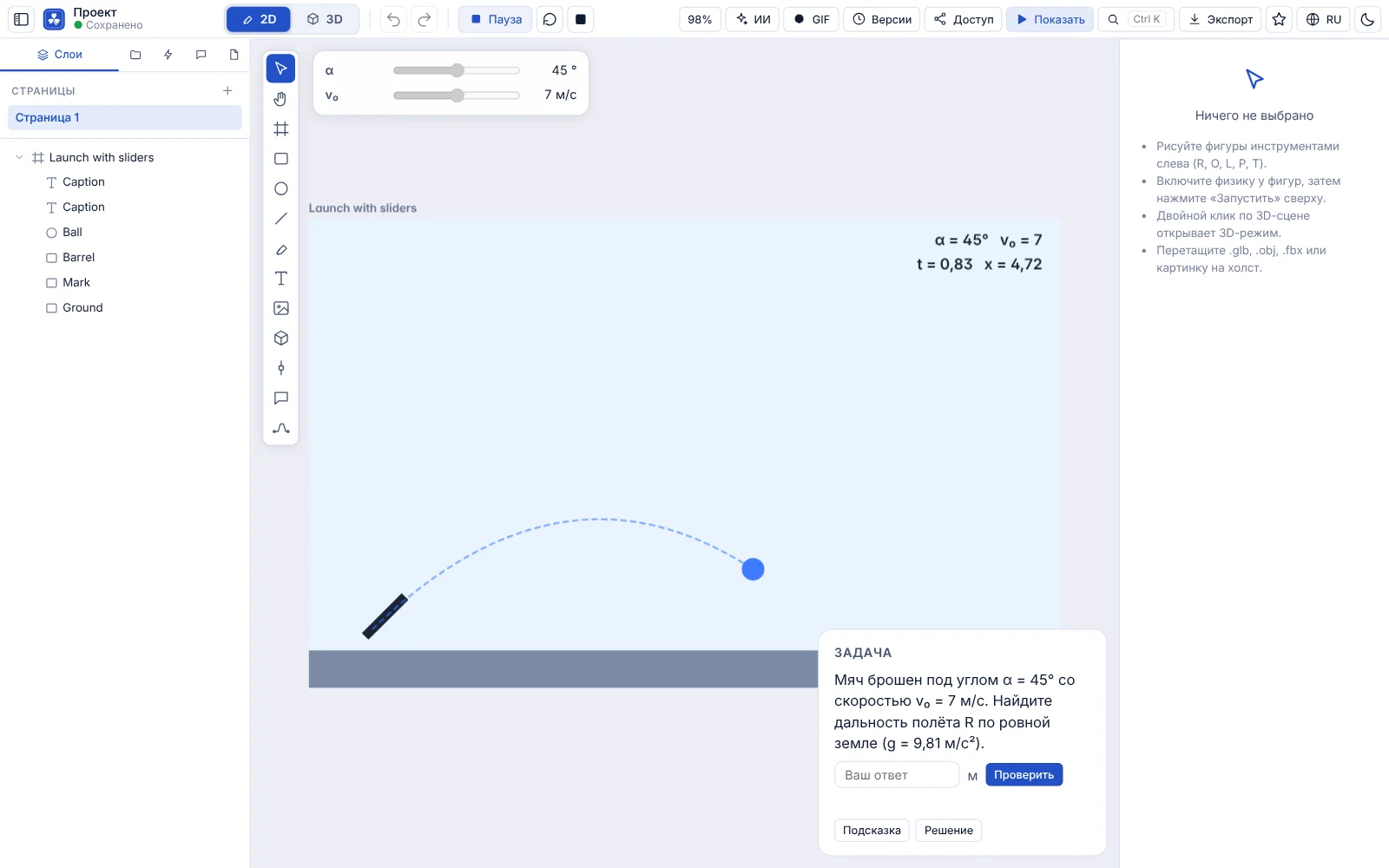
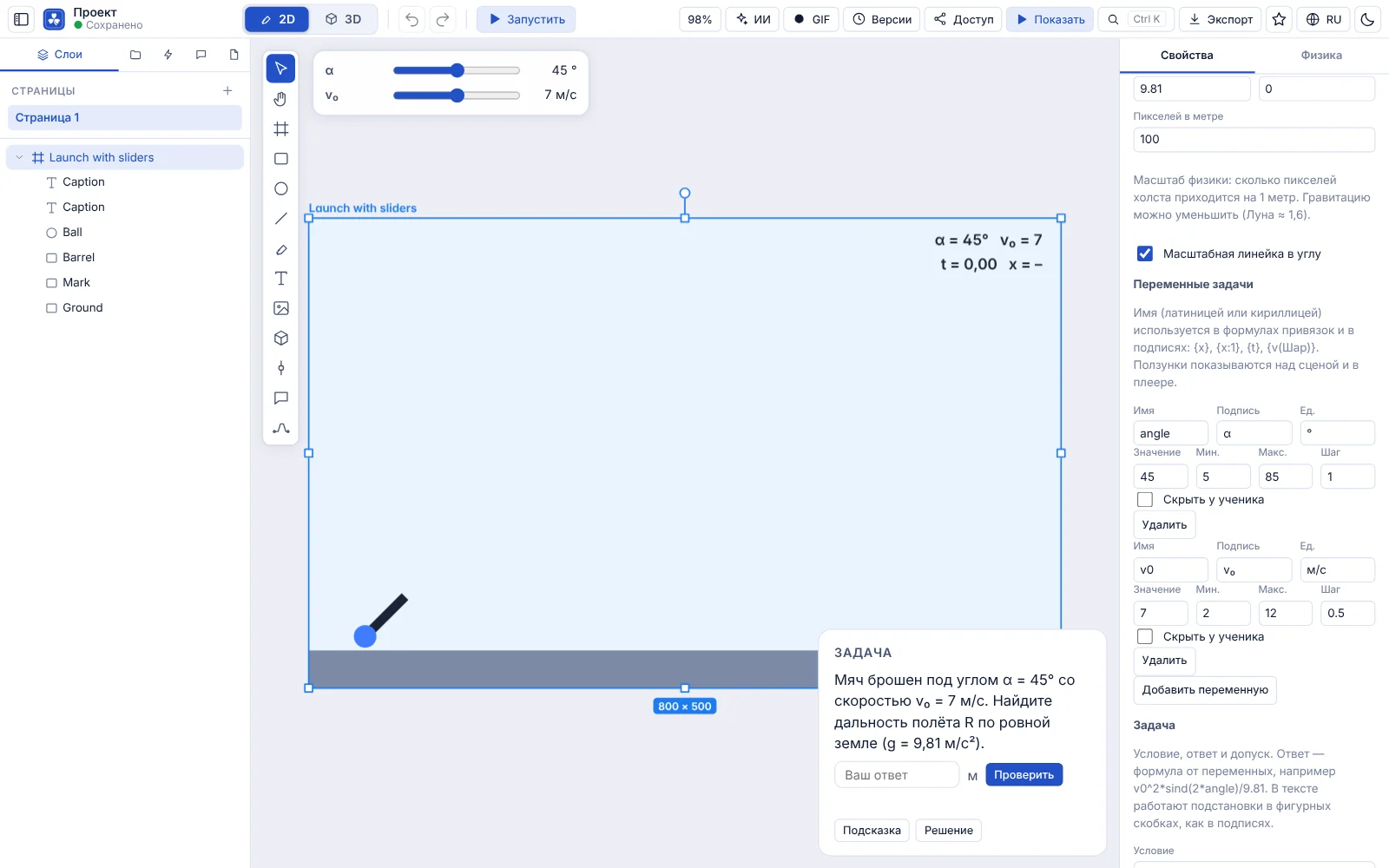
Projectile launch, a block on a ramp, a pendulum: you define variables, and the student moves the sliders and sees the result at once. The statement changes with the numbers, and the answer is checked with a tolerance.
- Sliders such as Angle and Speed, or your own, above the scene
- Live captions: time, speed and body positions in the right units
- Answer field, percentage tolerance, hint and worked solution
- A Hit the target! message from a sensor touch, no programming
Variables and formulas, no code
A frame has a list of variables. Any object property can be bound to a formula: the cannon rotation to the angle, the ball speed to sine and cosine. A safe built-in evaluator parses the formulas, nothing is executed.
- Name, label, unit, minimum, maximum and step for each variable
- Bindings: position, rotation, velocity and other properties
- A scale bar in the frame corner so metres are metres
- Ready parts in the Tasks tab: ball, weight, ramp, target, caption and variable
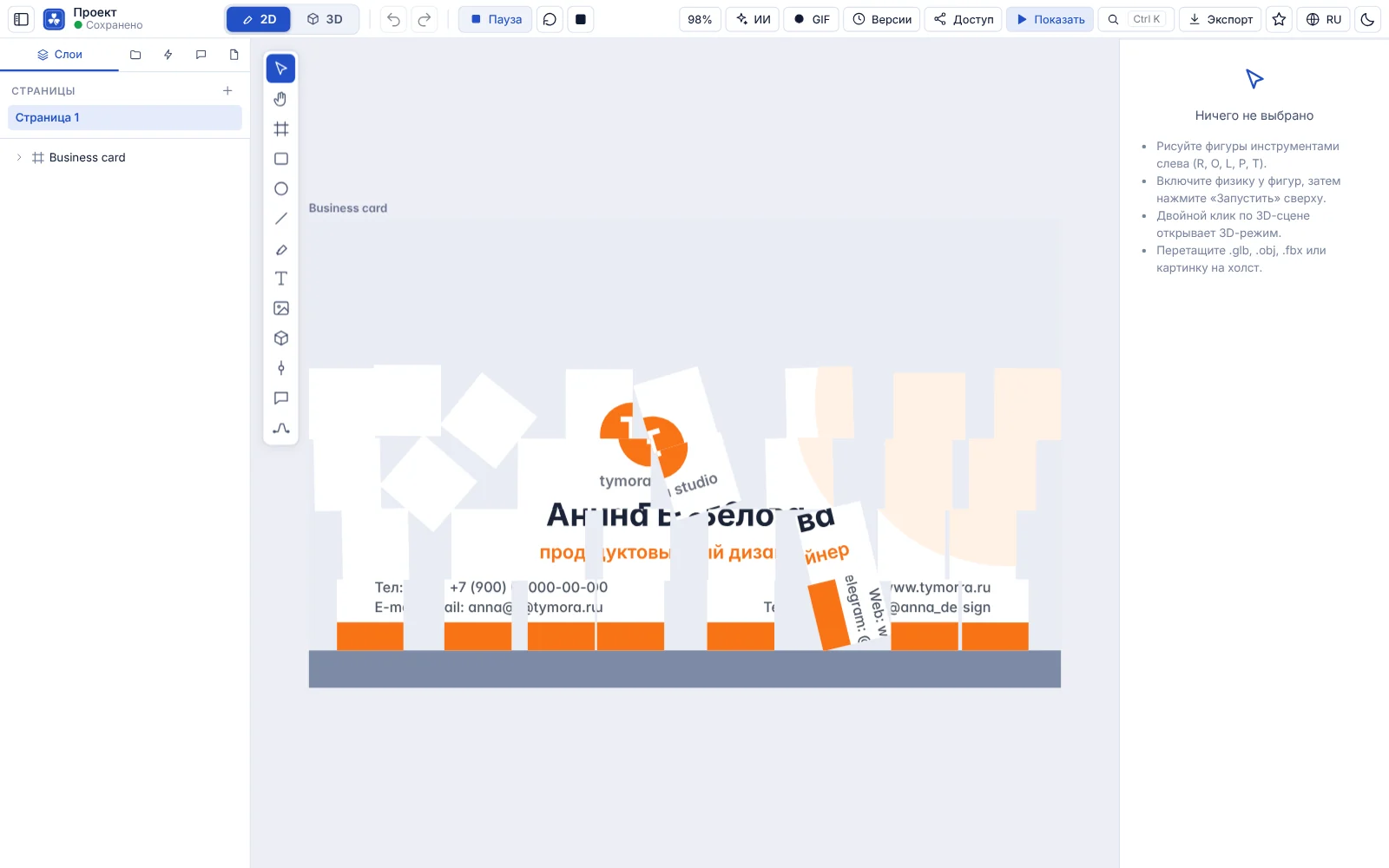
A layout that falls apart
A masked group can become a physical body. The business card on the home page is built from 32 tiles: on click it falls apart and each tile keeps its piece of the artwork. A quick way to test a motion idea.
- A group as one solid body or as a set of tiles
- When-then rules: touch, key, speed, position
- Actions: push, motor, change color, show a message
- Pause, Reset and Present without the editor interface
AI draws, physics moves, you save a GIF
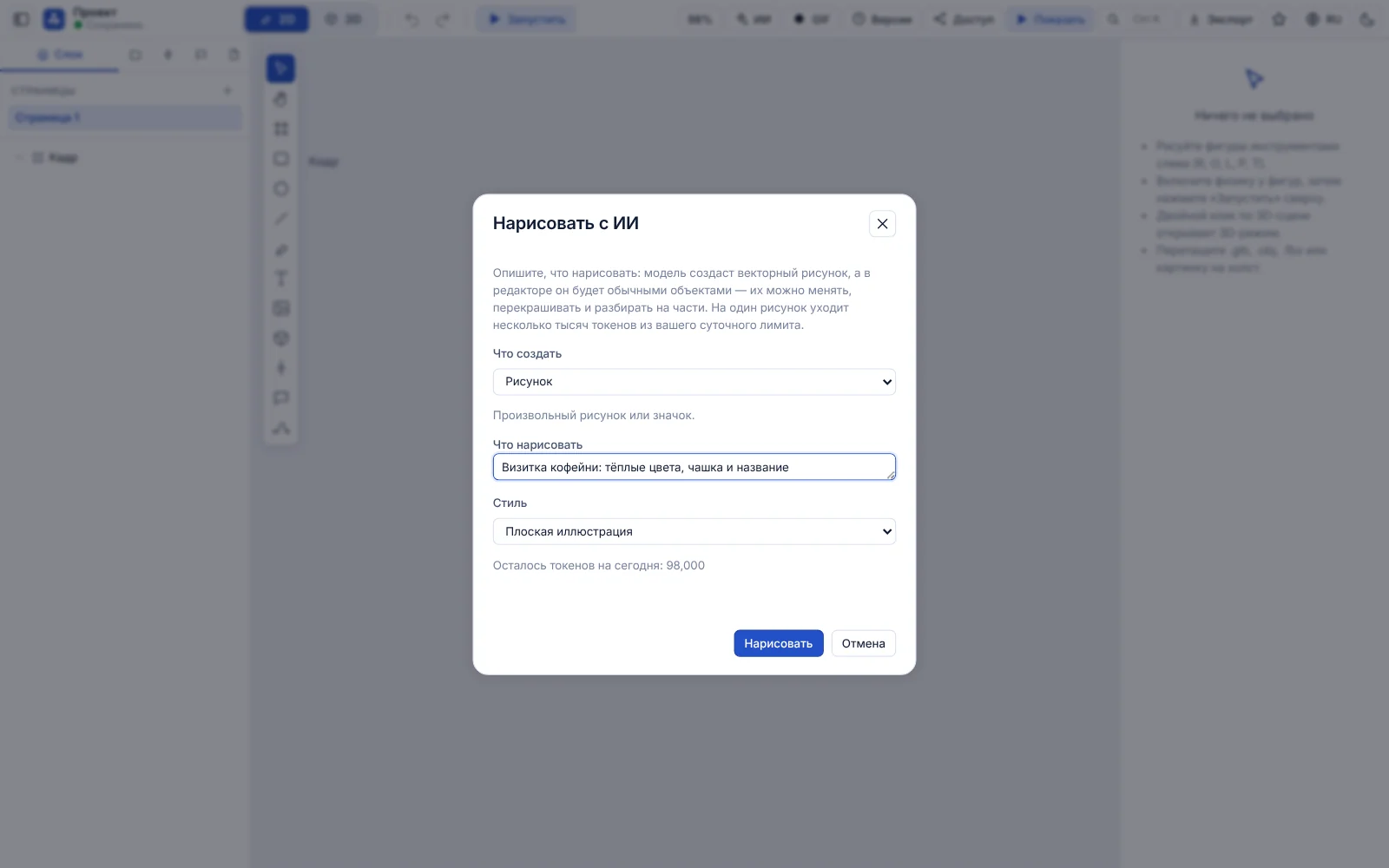
The AI button draws an illustration, a 90×50 mm business card, an A5 flyer, a 1200×400 banner or a button from your description. The result arrives as ordinary editor objects, so you can recolor, take it apart and bring it to life. The GIF button records the scene for up to 12 seconds.
- AI results are edited like any other drawing
- Your remaining tokens for today are shown in the dialog; the limit depends on the plan
- GIF: up to 12 seconds, 10 frames per second, up to 520 px wide
- Embed a finished task on any site with an iframe
Controls
A short map of the interface: what is where. The numbers in the screenshots match the numbers in the lists.
2D mode
The canvas, side panels and the top bar with the main actions.
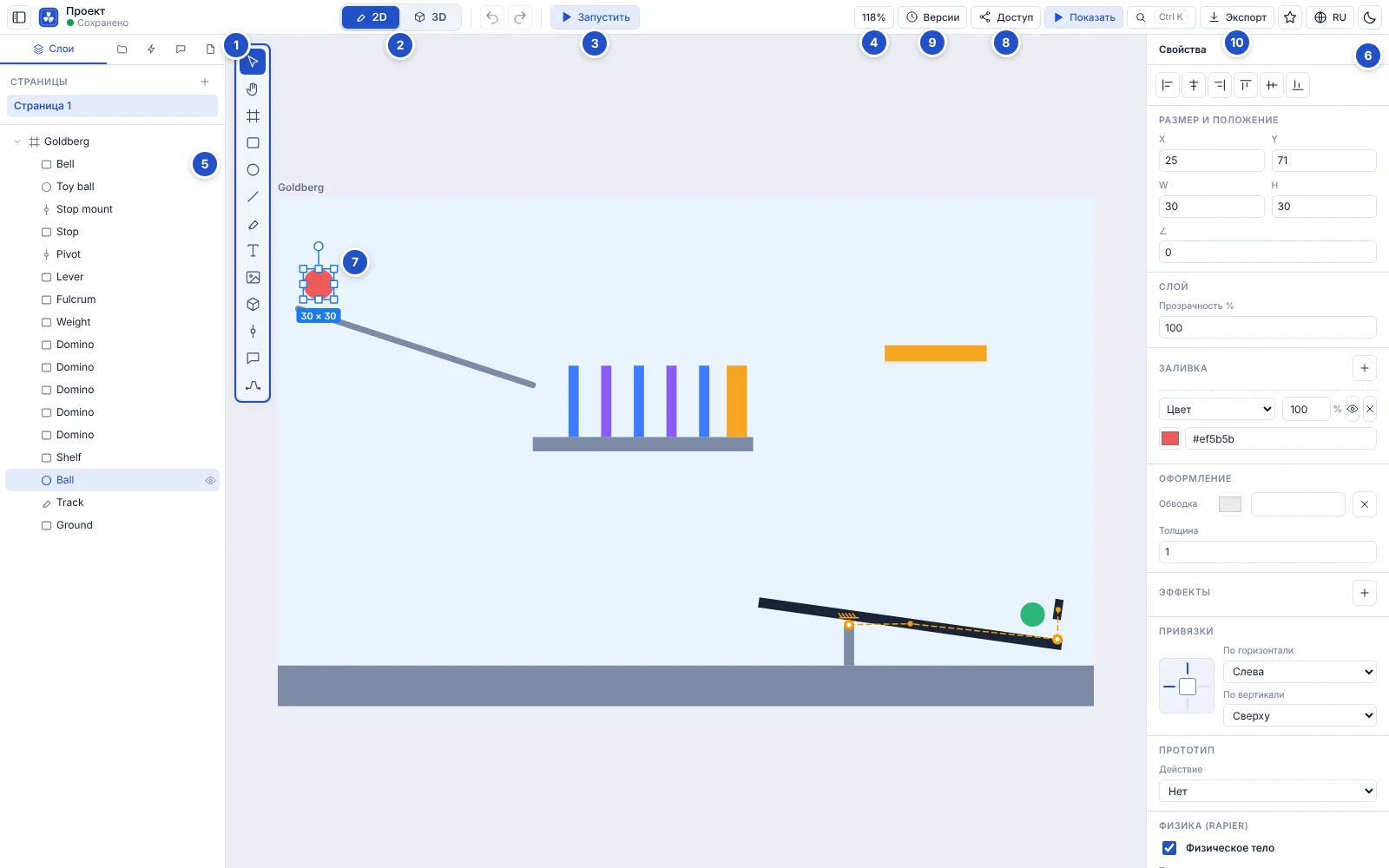
- Toolbar: select (V), hand (H), frame (F), rectangle (R), ellipse (O), line (L), pen (P), text (T), image, 3D scene (3), hinge (J), comment (C), wire (W).
- 2D / 3D switch. You can also switch with Ctrl+Alt+2 and Ctrl+Alt+3.
- Run starts the physics simulation; then Pause, Reset and Stop.
- Canvas zoom. Click the value to fit the view to all objects.
- Left panel: layers and pages, library, rules, comments, project description.
- Right panel: properties of the selection — size, fill, stroke, effects, constraints, physics.
- The selected object with its frame and handles: drag corners to resize and the round handle on top to rotate.
- Share: link and permissions for collaboration.
- Versions: change history and restore of earlier states.
- Export: download the project or single objects.
3D mode
A 3D scene has its own top bar, a vertical strip of view tools and a view cube.
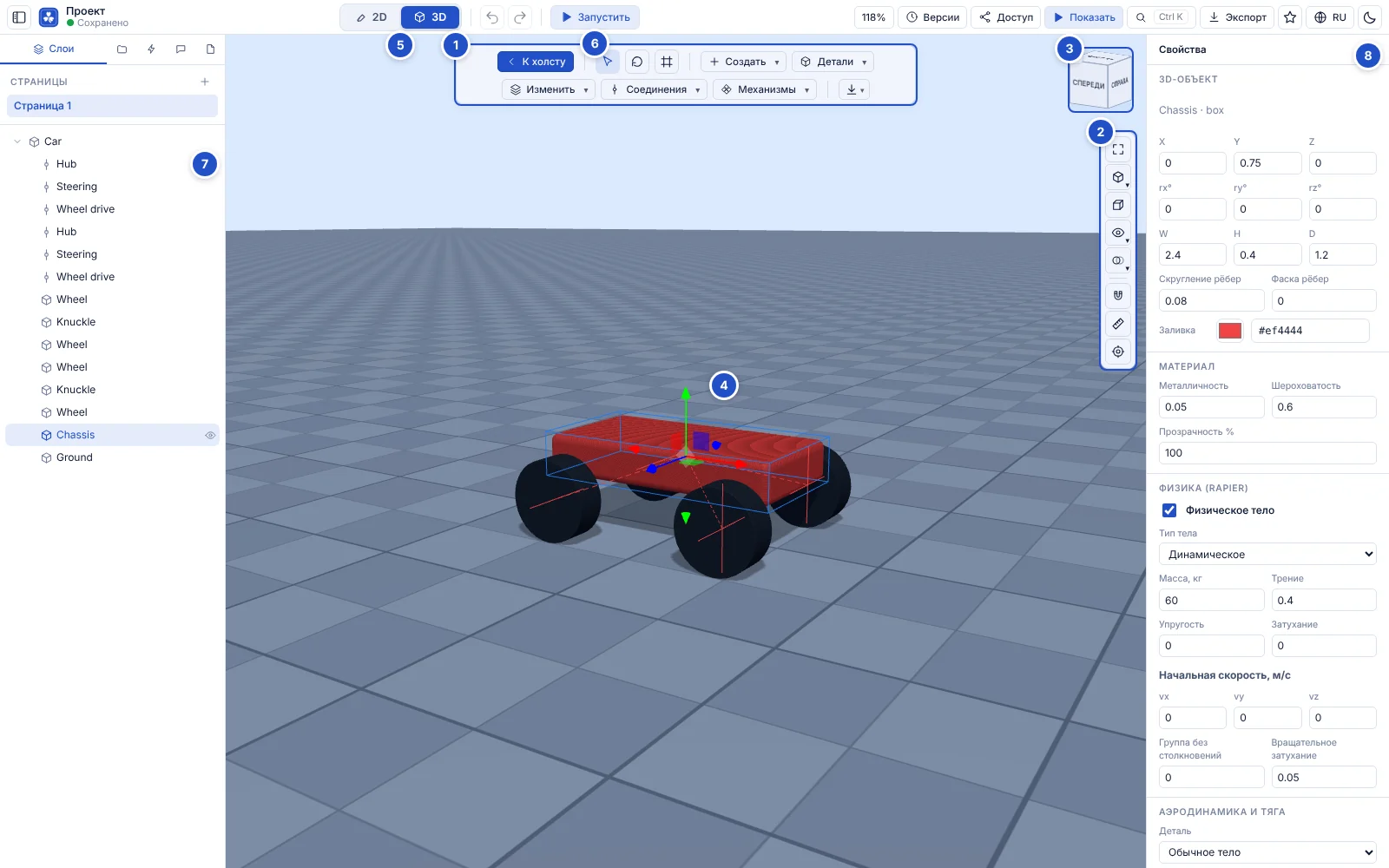
- Top bar: Back to canvas, gizmo modes (move, rotate, scale), Create, Parts, Modify, Joints and Mechanisms menus, export.
- Vertical strip: fit all, views, orthographic projection, display mode, section, snap, measure and follow body.
- View cube: click a face to look from the front, back, left, right, top or bottom; the home icon returns to the isometric view.
- Gizmo of the selected part: drag arrows, arcs and cubes. Modes: W (move), E (rotate), R (scale).
- 2D / 3D switch.
- Run turns on physics and keyboard control.
- Scene layers: click a row to select the part.
- Part properties: position, size, material, mass, friction, bounce and joints.
Driving a machine
While the simulation runs, the keys used by the mechanism appear at the bottom.
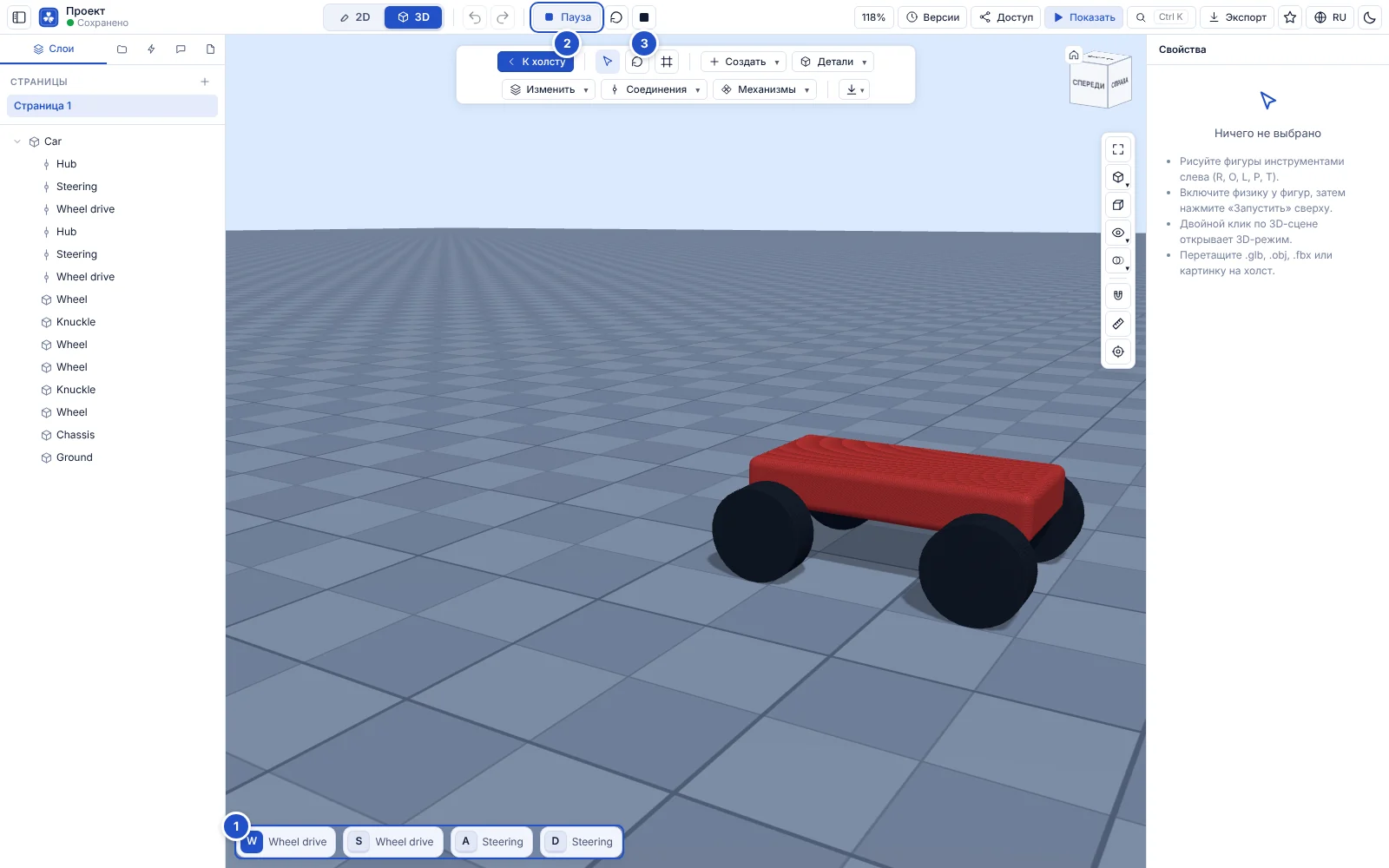
- Key hints: W and S drive the wheels forward and back, A and D steer. An airplane and other mechanisms use their own keys. You can also click the keys.
- Pause stops time without resetting the scene.
- Stop and restore the view returns the initial state and camera.
Keyboard shortcuts
On a Mac, ⌘ replaces Ctrl. The list is checked against the editor code.
2D tools
- V
- Select
- H
- Hand (pan the canvas)
- F
- Frame
- R
- Rectangle
- O
- Ellipse
- L
- Line
- P
- Pen (Bézier curves)
- T
- Text
- 3
- 3D scene
- J
- Hinge
- C
- Comment
- W
- Wire
- Shift+Ctrl+K
- Insert image
Edit
- Ctrl+Z
- Undo
- Ctrl+Shift+Z
- Redo (or Ctrl+Y)
- Ctrl+C
- Copy
- Ctrl+X
- Cut
- Ctrl+V
- Paste
- Ctrl+D
- Duplicate
- Ctrl+A
- Select all
- Del
- Delete
- Ctrl+G
- Group
- Ctrl+Shift+G
- Ungroup
- F2
- Rename
- Enter
- Enter a group or frame; Shift+Enter goes to the parent
- ←+↑+→+↓
- Nudge by 1 pixel; with Shift by 10
- Esc
- Clear selection, return to Select
Layers and layout
- Ctrl+]
- Forward one layer; with Shift to the front
- Ctrl+[
- Backward one layer; with Shift to the back
- Ctrl+Shift+L
- Lock or unlock
- Ctrl+Shift+H
- Hide or show
- Shift+A
- Auto layout
- Ctrl+Alt+U
- Boolean union
- Ctrl+Alt+S
- Boolean subtract
- Ctrl+Alt+I
- Boolean intersect
- Ctrl+Alt+X
- Boolean exclude
View and modes
- Ctrl+K
- Command palette
- Ctrl+Alt+2
- 2D mode
- Ctrl+Alt+3
- 3D mode
- Ctrl+Enter
- Present
- Shift+1
- Fit all
- Shift+2
- Fit selection
- +
- Zoom in
- −
- Zoom out
- Shift+R
- Rulers
3D
- W
- Move
- E
- Rotate
- R
- Scale
- Ctrl+G
- Make an assembly from the selected bodies
- Ctrl+Shift+G
- Break the assembly
- Esc
- Finish edge or face picking
Mouse and touch
- Wheel
- 2D: scroll the canvas; with Ctrl held or a pinch gesture it zooms at the cursor
- Space+drag
- 2D: pan the canvas. The middle mouse button and the Hand tool work the same way
- Double click
- 2D: on a 3D scene opens 3D mode, on text starts editing, on a curve edits its nodes
- Right button
- 2D: object context menu: layer order, boolean operations, grouping
- Left button
- 3D: orbit the scene around its center; click a part to select it
- Right button+drag
- 3D: pan the camera sideways
- Wheel
- 3D: zoom in and out
- Drag a file
- .glb, .obj, .fbx files and images can be dropped onto the canvas
Try it yourself
The editor runs in the browser. Start with a ready experiment from the gallery, see how it is built and change the parameters.